
A field-to-editing workflow for protecting irreplaceable photo and video files
By Leo Nogueira | Photographer, drone pilot, and creator of FlightFrame Studio
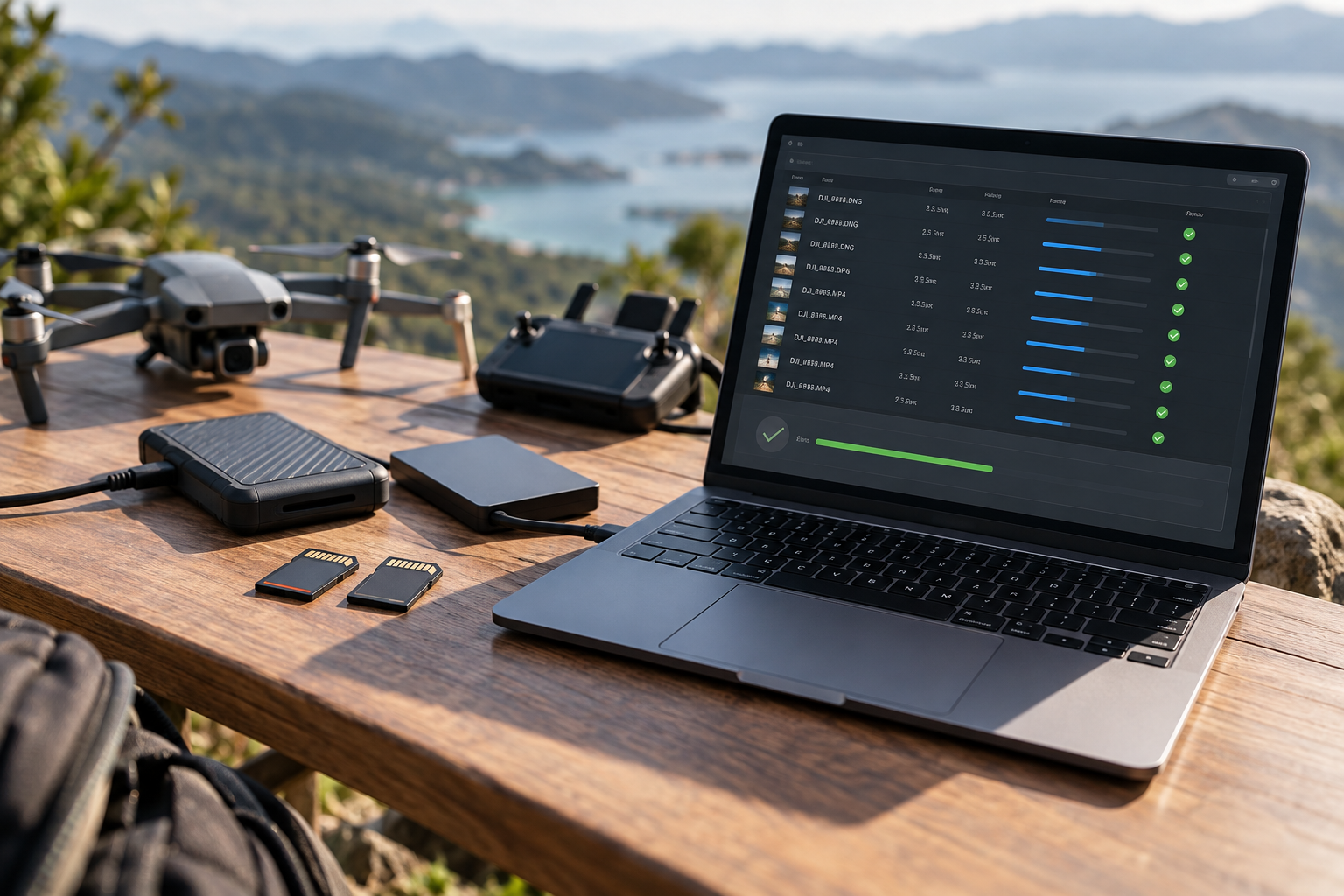
Illustrative image: a field workflow for copying and verifying drone media.
For drone pilots and photographers, the job is not finished when the aircraft lands or the camera goes back in the bag. The files still have to make it safely from a memory card to a working drive—and, ideally, to a separate backup. A folder that appears on a computer is encouraging, but appearance alone does not prove that every copied file matches its source.
Copying Is Not the Same as Verifying
A normal file copy transfers data from one location to another. Verification adds a comparison step: the destination copy is checked against the source so that a mismatch can be detected. One common method is a cryptographic hash such as SHA-256, which produces a digital checksum from a file’s contents. If the source and destination checksums match, that is strong evidence that the copied file is byte-for-byte consistent with the source that was read.
There is an important limit to understand: a matching checksum does not prove that the original capture was perfect, nor can it recover data that was already corrupted or missing on the card. It verifies the relationship between the file read from the source and the copy being checked. That makes it a useful part of a backup workflow—not a substitute for good capture practices, multiple copies, or checking important footage.
A Practical Checklist Before Reusing a Card
-
Keep the original card unchanged until the first copy is verified. Avoid deleting files or formatting the card just because a progress bar reached 100 percent.
-
Verify the copied files. Use a workflow that compares checksums or otherwise validates the copies, and review any errors or mismatches rather than ignoring warnings.
-
Make a second copy on a separate physical drive when the material matters. A second folder on the same drive does not protect against that drive failing. For higher-value projects, consider a separate drive or NAS and an additional off-site copy where practical.
-
Confirm the destination and available space. Make sure the copy is going to the intended project folder and that the destination has enough capacity for the full shoot, including video and sidecar files.
-
Keep a record of the import. A report listing files and verification results can make it easier to investigate a problem later or confirm that a handoff is complete.
-
Only format the card after you have confirmed that the material is present and safely backed up according to your own retention policy. For important client work, do not rely on a single copy.
Drone Footage Adds a Few Workflow Wrinkles
A single flight may produce still photographs, video clips, telemetry or subtitle files, and other sidecar data. Those files can serve different purposes, so a reliable ingest process should preserve related files and organize them in a way that makes the flight easy to identify later. Consistent project names and folder structures reduce the chance of mixing material from multiple cards or jobs.
Time metadata can also complicate post-production. If a camera or drone clock is set incorrectly, files may appear out of sequence or be harder to match with video and flight records. Correcting metadata on working copies, while preserving the originals, can help keep a project coherent. Any automated correction should be reviewed before it becomes part of a client delivery.
A Simple Workflow From Card to Edit
A repeatable process is more useful than a complicated process that gets skipped when a pilot is tired or working under time pressure. A sensible sequence is: inspect the card, choose the destination, copy and verify, create a second verified copy, review the report, and then import the organized project into the editing or cataloging application. Build the steps into the end of every shoot, rather than treating backup as an optional task for later.
For photographers using Lightroom Classic, it also helps to separate ingest and verification from catalog management. Organizing files into clear project folders before import makes it easier to understand what has been copied, what has been backed up, and what is ready for editing. Lightroom catalogs are valuable, but a catalog is not itself a backup of the original media files.
Tools Can Make the Process More Repeatable
Dedicated ingest tools can automate parts of this process, including checksum verification, duplicate detection, second-drive copies, and project-folder creation. The important questions are practical: Does the tool verify each copied file? Does it make clear which copy was checked? Does it avoid silently overwriting files? Can you review a report? Does the workflow preserve the original card contents?
One example is FlightFrame Studio, a Mac application developed by photographer and drone pilot Leo Nogueira. Its listed features include SHA-256 verification, an optional second-drive backup, project organization, and preparation for a Lightroom Classic workflow. It is available through the Mac App Store. As with any tool, users should test the process with non-critical files first and confirm that its behavior matches their own backup requirements.
The Rule Worth Keeping
Do not judge a backup only by whether files appear in a folder. Verify the copy, keep a second copy of important material, review errors, and delay formatting until the workflow is complete. A few deliberate minutes at the end of a shoot can prevent hours of troubleshooting—and may be the difference between delivering the project and discovering that the only copy of a key shot is gone.
About the Author
Leo Nogueira is a photographer and drone pilot based in Brazil and the creator of FlightFrame Studio, a Mac app for importing, verifying, and organizing photo and video files. Learn more at https://flightframe.ravendronevideos.com.br/ or visit the Mac App Store listing at https://apps.apple.com/app/flightframe-studio/id6822035026.
Disclosure: The author created FlightFrame Studio, which is mentioned in this educational article.